A customer enters a valid address, but checkout says no shipping options are available. Another customer gets the national flat rate when they should qualify for local delivery. Both problems can start with the same thing: the wrong shipping zone matched their address.
To test WooCommerce shipping zones, start with the destination. Confirm which zone matches, check the methods enabled in that zone, then test the package and any conditions attached to those methods. Finish with a real checkout test for anything that depends on coupons, customer details, or a shipping provider.
You don’t need to keep changing settings and hoping the next checkout looks right. Write down the result you expect first. Then change one input at a time.
Check zone order before changing a rate
Go to WooCommerce > Settings > Shipping > Shipping zones. WooCommerce checks the zones from top to bottom and uses the first matching zone for the shipping destination. It doesn’t combine the methods from every matching zone.
Suppose you have two zones:
- Local delivery: a specific group of postcodes, with a local flat rate.
- United States: all US destinations, with a national flat rate.
If the United States zone comes first, it can match the local address before WooCommerce reaches Local delivery. Changing the price in Local delivery won’t fix that. The customer isn’t reaching that zone.
Place the more specific zone above the broader one. Test an address inside the local area and another outside it. The first should match your local zone; the second should fall through to the national zone.
WooCommerce’s shipping zone documentation explains this first-match behavior and the supported postcode formats. Check exact postcodes, numeric ranges, and wildcard rules against that documentation. A wildcard can cover more addresses than its name suggests.
Also check WooCommerce > Settings > General > Shipping location(s). Your zone list isn’t the only setting that controls where the store ships.
Write a small test list
Choose destinations and packages that exercise the edges of your rules. Six useful cases are:
- A normal order in your main shipping area. Use one ordinary physical product and an address you expect to serve.
- An address inside a local postcode rule. Expect the narrow local zone, not the wider country zone.
- An address just outside that rule. Expect the next applicable zone, or no available shipping if you intentionally exclude the area.
- A destination outside every named zone. Check the fallback zone and whether it has any methods configured.
- An order near a free-shipping threshold. At checkout, test just below the minimum, exactly at it, and just above it.
- A product with a different shipping class. Compare it with your ordinary product, then test both together.
For each case, record the destination, expected zone, product or sample package, and expected methods. Include the quantity and currency. A note that says “shipping wrong” is hard to reproduce; a note that says “two items, this postcode, expected Local delivery” gives you somewhere to start.
Use staging when a test requires changing rules. A read-only check can inspect the current configuration without saving those changes.
Run a sample package through Shipping Rules Tester
AP Shipping Rules Tester for WooCommerce is our free, read-only tool for investigating local shipping rules. As of September 25, 2026, it has been submitted for WordPress.org review. Its source and manual installation instructions are available on GitHub; there isn’t a directory install link yet.
Once installed, open WooCommerce > Shipping Rules Tester:
- Enter the country, state or province, postcode, and city for your test destination.
- Enter a sample package value, total weight, and quantity. Use the currency and weight unit configured in your store.
- Select a saved product if its shipping class or dimensions matter. The tester reads that product’s saved details without editing it.
- Choose Test shipping rules.
- Read the matched zone before looking at the rates. If the zone is wrong, investigate its location rules and position in the zone list first.
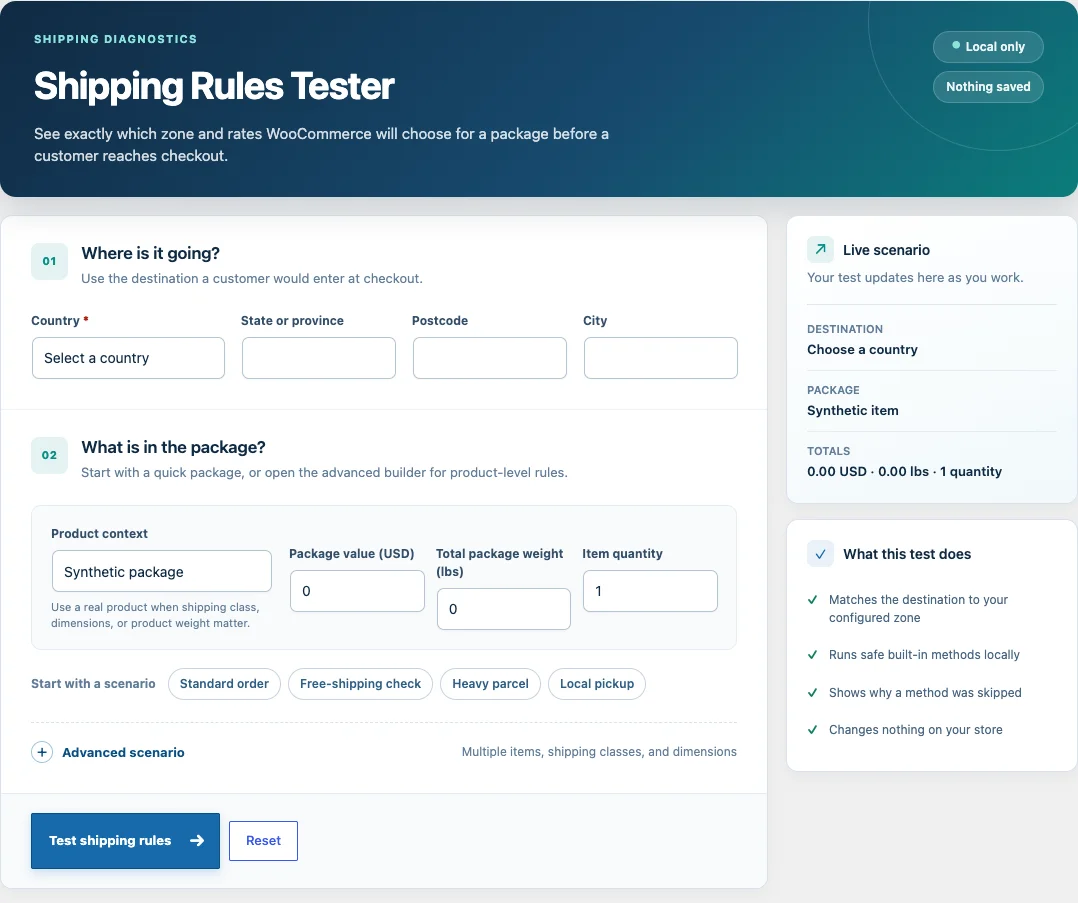
The standard-order and other quick presets are starting points. Adjust their inputs to match the case you’re investigating. For a mixed package, use the advanced builder to add multiple items, per-item quantities, dimensions, and shipping classes.
Choose Keep result and test another to compare a second destination or package. Change one thing: the postcode, the product, or the quantity. If you change all three, you won’t know which one explains the difference.
Comparisons stay in the current browser tab. They aren’t saved as reports and disappear when you leave the page or clear the comparison. Copy the relevant details into your own test notes if you need to share them.
Read “no rate” and “skipped” differently
A matched zone doesn’t guarantee an available rate. Inspect each method’s result rather than treating an empty result as proof of a broken configuration.
A disabled method isn’t available for the test. Open the matched zone’s settings and check whether the method is supposed to be enabled.
A method returning no rate needs a closer look at its settings and the package supplied. Check the product context and any conditions the method expects. The result is a clue to investigate, not a reason to turn every shipping method on.
A skipped method wasn’t fully tested. It may need live-cart information or an external provider. The tester deliberately avoids external carrier calls, so a skipped carrier method doesn’t mean that the carrier is offline.
In the plugin’s example result, a local flat rate returns a price while a free-shipping rule is skipped because it needs live-cart or coupon context. Those are different outcomes. Don’t report the skipped rule as a failed shipping calculation.
Check the method’s explanation, then move to checkout if the missing context lives there.
Test free shipping at the threshold and with coupons
Open the free-shipping method inside the matched shipping zone. Read its requirement before testing. WooCommerce can make free shipping depend on a minimum amount, a valid coupon, either condition, or both conditions.
For an illustrative minimum of 50 in your store currency, test 49.99, 50, and 50.01 using a currency that supports two decimal places. These are example test values, not plugin defaults. Use your store’s configured threshold and precision.
Then test a discount. WooCommerce’s Apply minimum order rule before coupon discount option changes which amount is used for eligibility. An order above the threshold before a coupon may fall below it afterward. Check the setting rather than assuming the original subtotal is the relevant amount.
If a free-shipping coupon is required, confirm that the coupon allows free shipping and meets the method’s requirement. “Minimum amount OR coupon” and “minimum amount AND coupon” produce different results.
These coupon checks belong in a real cart and checkout session. Shipping Rules Tester doesn’t simulate coupons or live-cart state, and rules requiring that context can be skipped. See the official free-shipping setup guide for the available requirements and discount behavior.
Check product classes, units, and mixed packages
A flat-rate method can use shipping-class costs. That makes a test with a generic item different from a test with a saved product assigned to a particular class.
Start with the product that produced the unexpected charge. Check its saved shipping class, weight, and dimensions. A manually entered weight of 2 means something different in a store configured for kilograms than in one configured for pounds.
Next, test the product on its own and with a second item. Review the method’s class-cost calculation settings. Don’t assume that the price for a mixed package should equal the sum of the rates you saw for two separate packages.
Weight by itself doesn’t make every flat-rate configuration weight-based. Whether an input affects the price depends on the shipping method and its configuration. WooCommerce’s flat-rate documentation is the reference for its built-in cost fields and class calculations.
Finish with the customer’s checkout journey
A local diagnostic result tells you about the configuration and sample package. It doesn’t prove the complete customer journey works.
Using the same destination and real products, open the storefront and check:
- The available methods and final shipping total at checkout.
- Coupon behavior, including the free-shipping threshold after discounts.
- Carrier-provided rates, if your store uses an external shipping service.
- Any rules tied to customer roles, subscriptions, or other live-cart context.
- Local pickup in the checkout your store actually uses. Pickup configured for Cart and Checkout blocks has its own setup; a zone-method check isn’t a complete test of that interface.
Use a staging store and your payment gateway’s test mode if you need to place an order. The diagnostic plugin itself doesn’t create orders or alter customers, products, or shipping settings.
Keep the final test notes with the change you made. Include the zone order, destination, package, and observed checkout result. That gives you a useful starting point after a future shipping extension or WooCommerce update.
Frequently asked questions
Why is WooCommerce choosing the wrong shipping zone?
Check the destination and zone order first. WooCommerce uses the first matching zone, so a broad country zone above a postcode-specific zone can take precedence. Verify that the intended zone’s region and postcode rules actually include the test address.
Why are no shipping methods available for a valid address?
A valid address can still match a zone with no enabled methods, or fall into a fallback zone with none configured. Method conditions can also prevent a rate from appearing. Find the matched zone first, then inspect its methods and test any cart-dependent requirements at checkout.
Can I test shipping without placing an order?
Yes. Shipping Rules Tester can match a destination and calculate supported local methods with an unsaved sample package. You can also inspect shipping choices in a real cart before submitting an order. Carrier integrations and cart-dependent rules still need their own checkout tests.
Does Shipping Rules Tester check live carrier prices?
No. It doesn’t contact external shipping providers. Such methods are marked as skipped. Use the carrier extension’s supported testing process and check the result at checkout.
Start with one address that gives the wrong result. The Shipping Rules Tester page shows the supported checks and current installation options. For other store maintenance tasks, browse the WooCommerce plugin catalog.